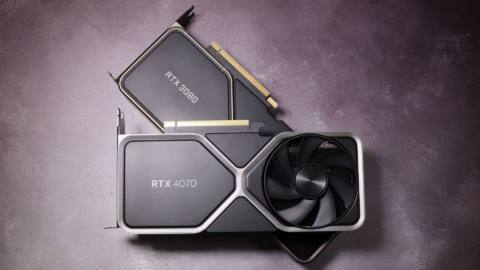
Just in case you’ve been napping under a cool mossy rock since about January 2025, Multi Frame Generation (or MFG) is a frame rate boosting/game smoothing feature that leverages AI to create as many as five frames for every actually rendered frame. Nvidia introduced the original 2x Frame Generation feature with the RTX 40-series graphics cards in 2022. Sadly Nvidia restricted the more recent Multi Frame Generation version of the tech to RTX 50-series cards alone. Mmm, buttery; boo, proprietary.
But before you rush out to search in vain for an RTX 5090 at MSRP, it is possible to get most of the extra smoothness of MFG working on older Nvidia graphics cards—if you don’t mind a little bit of software tinkering.
Before I tell you how, there’s a few things to note. For one thing, Nvidia restricted higher rates of MFG to the RTX 50-series cards for a reason. At the risk of oversimplifying, the RTX 50-series’ silicon is specifically designed to manage the extra frames in ways the older architecture is not. There’s a dedicated AI Management Processor (AMP) which works alongside Flip Metering to get frames—rendered and generated—delivered to the display in as smooth a way as possible. The older architectures don’t have these features dedicated to frame generation.
As such, CEO Jensen Huang has said in the past that bringing “the latest generation AI technology to the previous generation GPUs” is a good idea but that it would “require a fair amount of engineering.”
So it bears repeating the method for unlocking 4x MFG on a RTX 40-series card that I’m about to show you is definitely not officially supported. Besides that, one more thing to note is MFG is not a perfected technology—enabling higher levels of frame generation can introduce smeary frames and latency issues. Our Nick found that latency is an issue even with a frame rate limiter in place, too. Basically, all those extra frames may not actually offer the smoothest experience, depending on the game, even if the frame rate looks high.
But, if you’d still like to give it a go, here’s how.
How to enable 4x MFG on RTX 40-series | In short
- Download the ReShade HDR Installer.
- Check the game you want to test supports MFG.
- Select your chosen game from the left side panel in RHI.
- Scroll down and click to install ‘RTX 40 MFG,’ and ‘OptiScaler’.
- Scroll back up to ‘Nvidia Profile Overrides.’
- Click on the blue button that says ‘Multi Frame Generation’. Click ‘OK’ on the resulting dialog box.
- In the box titled ‘Multi Frame Generation’, select ‘Dynamic’, ‘Up to 4x,’ and ‘off’ from the drop-down lists. Click ‘Close’.
- Launch your game. Select the relevant in-game Multi Frame Generation option.
How to enable 4x MFG on RTX 40-series | Breaking it down
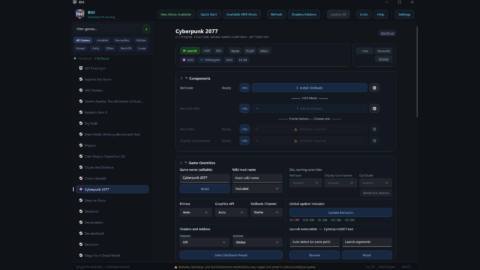
First things first, you’ll need to download the ReShade HDR Installer (or RHI) from GitHub. This software automates the installation of unofficial mods like the post-processing injector referenced in the name.
When you open up RHI for the first time, it should import all of the games you already have installed. Before you do anything, make sure the game you want to test with your 40-series card actually supports MFG—Nvidia has a handy list of all the games that support DLSS Multi Frame Generation, and more of its snazzy RTX rendering tech right here. I’d recommend picking a single player game to test, as the mods you’ll need to install can trigger in-game anti-cheat detection systems.
Once you’ve chosen the game you want to test, click on its name in the left side panel in RHI. You’ll see a lot of game-specific options and mods come up on the main part of the RHI window. To unlock 3x and 4x MFG on a 40-series card, scroll down to the bottom of the list of options in RHI, then click to install ‘RTX 40 MFG,’ and ‘OptiScaler’.
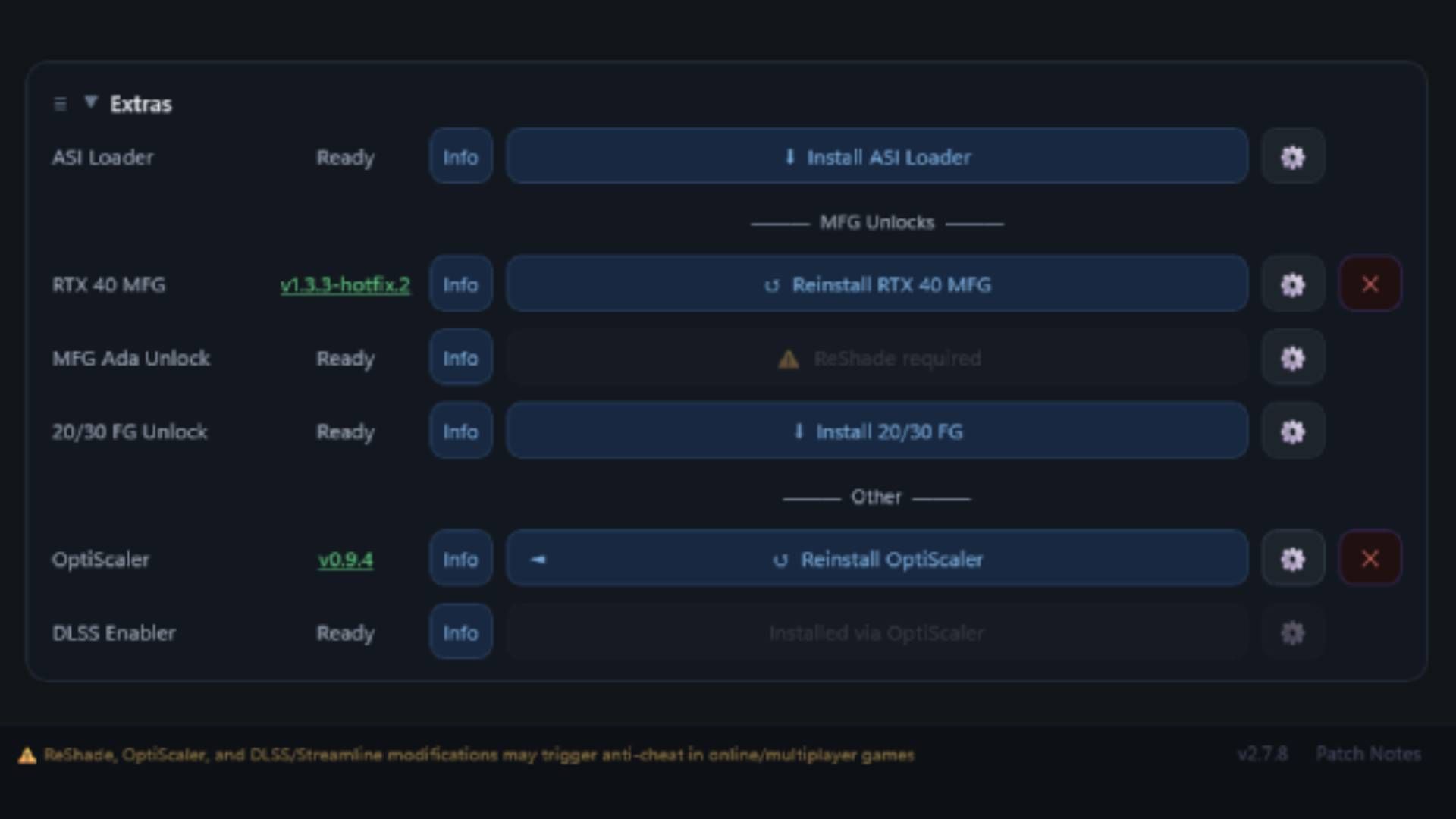
Once those two unofficial mods are installed (this should only take a few seconds), scroll back up to ‘Nvidia Profile Overrides.’
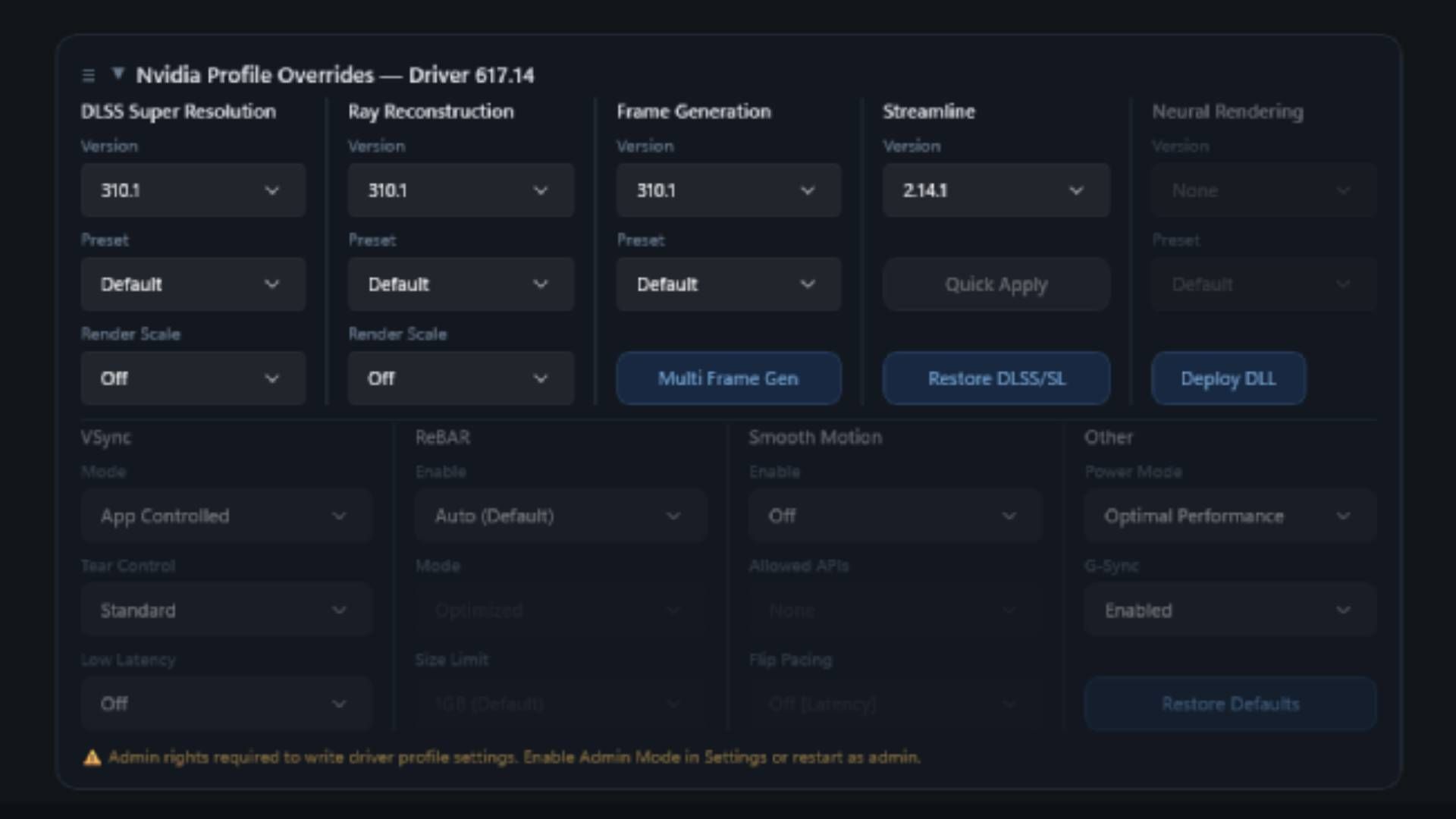
Click on the blue button that says ‘Multi Frame Generation’. A dialog box will pop up, saying ‘Multi Frame Generation (MFG) and Dynamic MFG are only supported on Nvidia 50 Series GPU (Blackwell architecture)’.
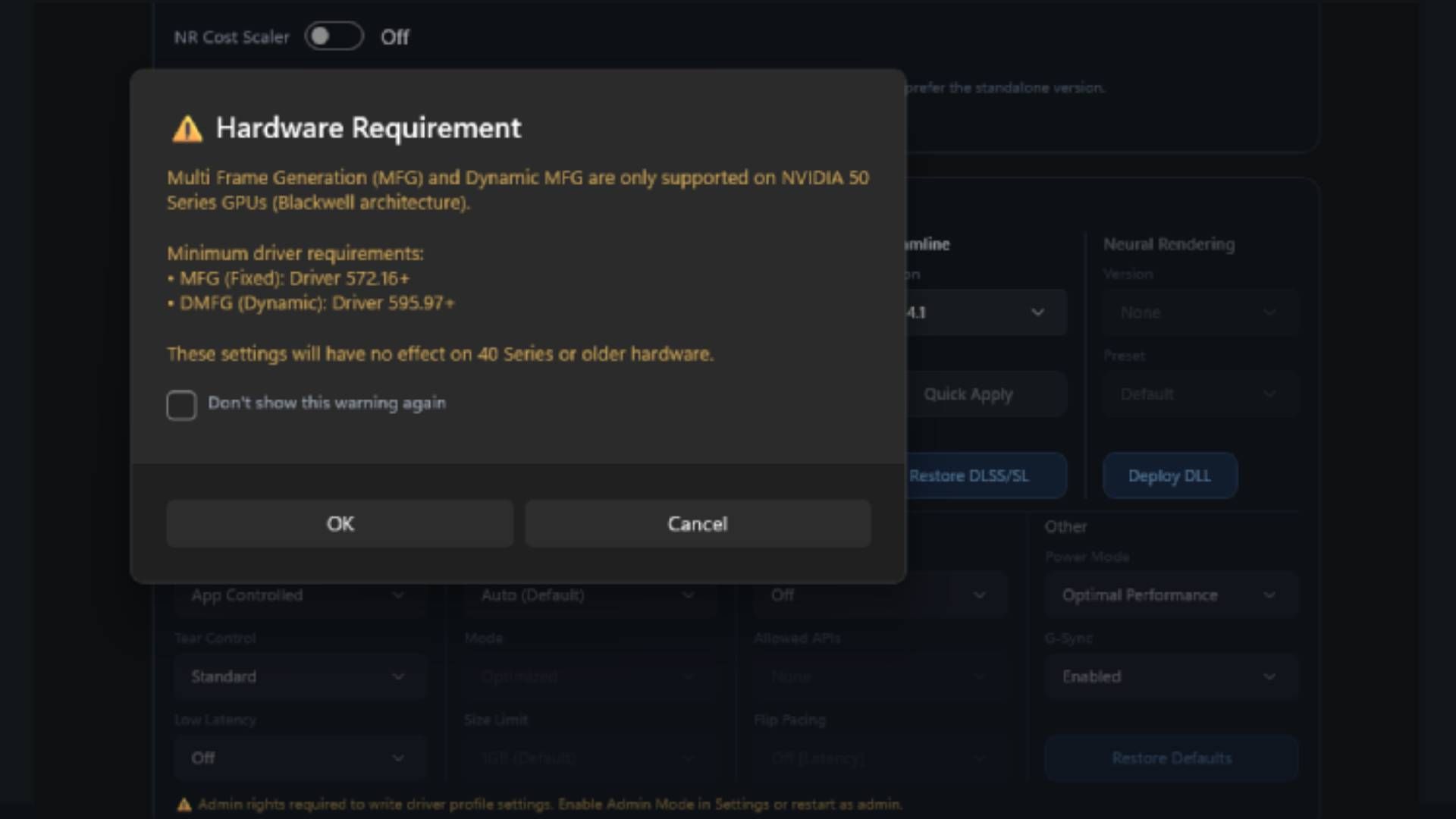
Click ‘OK’ on this dialog to open another box titled ‘Multi Frame Generation’. This will feature three drop lists of options.
Under ‘FG’ I selected ‘Dynamic’, under ‘Frame Count’ I chose ‘Up to 4x,’ and I set ‘Target Frame Rate’ to ‘Off.’
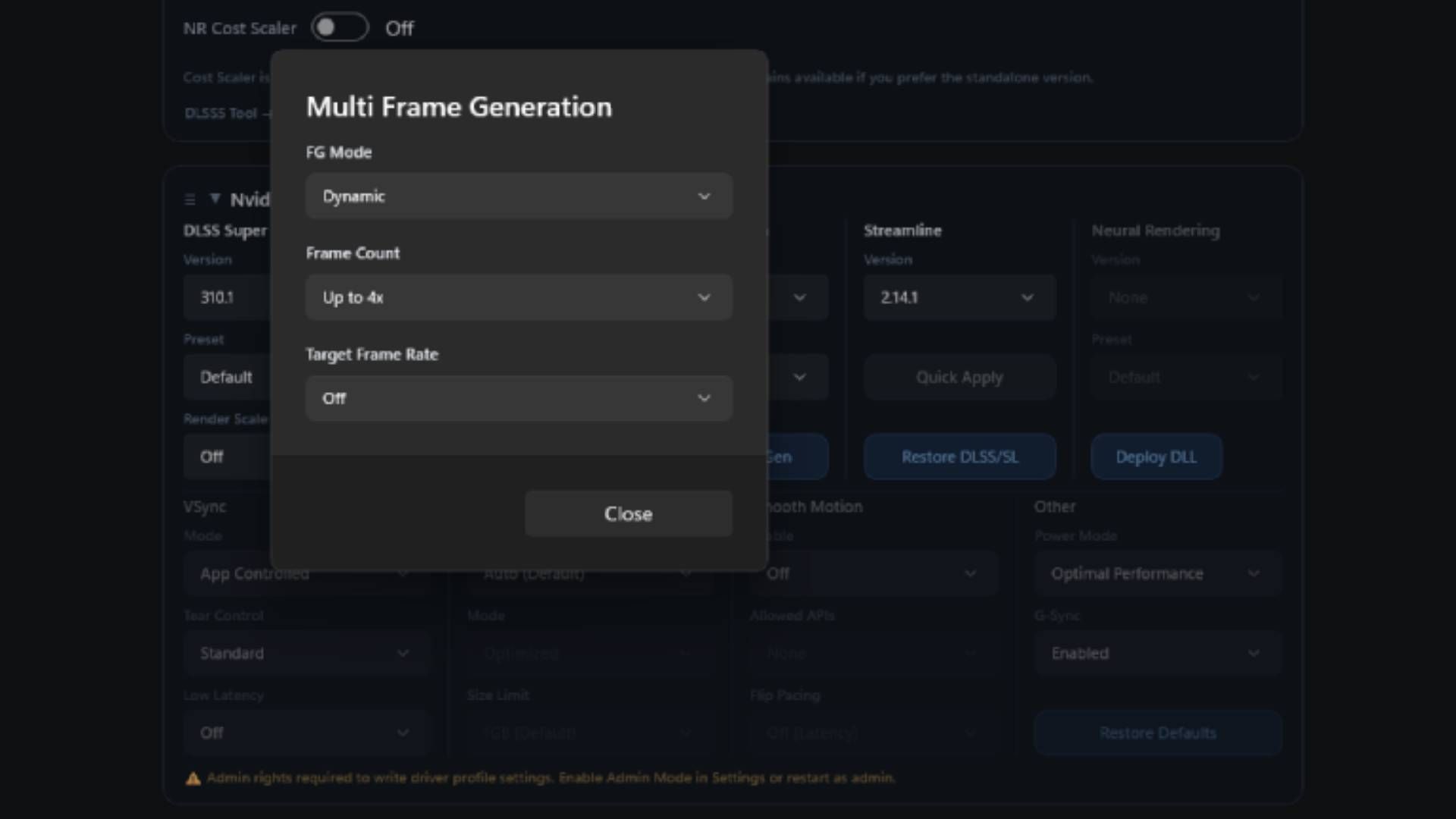
If you’re lucky, that’s all the tinkering you’ll need to do (if you’re unlucky, you may need to swap between a few different driver versions within RHI). From there, you can launch your MFG-supporting game of choice, and then tweak the relevant in-game Frame Generation options.
Not all games offer a 4x MFG option specifically, so I sometimes relied on the FrameView app overlay to confirm it was active with my RTX 4070 Super. But otherwise, that’s it!
Now go forth and enjoy some buttery smooth frame rates!
About Author